Changelog

Follow new updates and improvements to Andyapp.

February 11th, 2026

CONTROL PANEL

APP

Bringing Action Plan and Sensors to the Next Level 🚀

We’ve prepared one of the biggest updates to Andy so far. It includes major improvements to the Action Plan and Sensors, making them more powerful, flexible, and capable of creating smarter workflows.

(1) Improvements to the Action Plan

The Action Plan experience has been completely redesigned to enhance the visibility, management, and tracking of action plans generated from audits, making both the tool and the overall experience more consistent, intuitive, and efficient.

🟢 Changes in the Control Panel (CP)

📆 Deadline

  • Set a timeframe to complete action plans once the audit has been completed.

  • Andy automatically calculates the deadline and displays it in the app, helping you stay on track.

Custom Status

  • In Customization, you can now create and manage Action Plan statuses, tailoring them to your workflow and brand processes.

📋 New Supervision Table

Navigate between audits and action plans, now on separate pages, for a better overview and easier management.

🔹 Audits

  • A new column has been added to the table with the unique ID for each audit, making it easier to identify and distinguish between different audits.

  • In the Action Plans column, you can now see a full breakdown of how many action plans are associated with each audit, grouped by status: 🟢 Completed; 🟡 In Progress; 🔴 Open; ⚪ Other custom statuses.

  • The report provides a quick summary of non-conformities generated during the audit.

🔹 Action Plan (new)

In the new view, you can:

  • Easily view and manage all generated action plans.

  • Use filters to customize your view and track progress.

  • See that each action plan is linked to the ID of the audit that generated it.

🛡 Permission Management

Remember, you can already control who can view and manage action plans:

  • If the template has no management permissions configured: any user with access can freely manage audits and action plans.

  • If you set role-based permissions:

    • View: can only view and create checklists; cannot change statuses or respond to items.

    • Edit: can respond to items and change statuses, but cannot reopen Completed plans.

    • Manage: can do everything, including reopening Completed plans, unless they are locked by the deadline.

💡 This reminder helps ensure that permissions are set according to your team’s needs.

Control Panel


🟢 App Updates

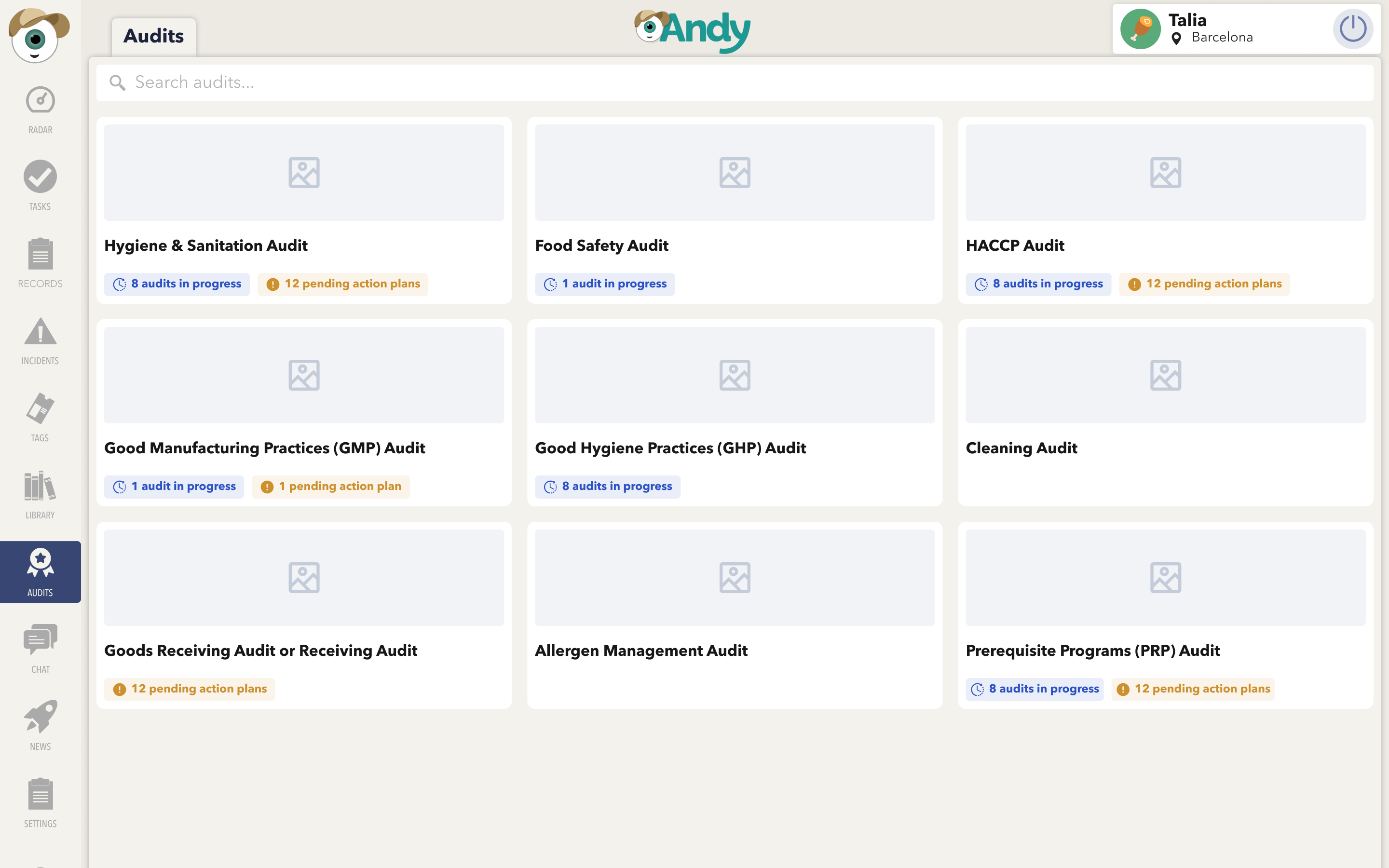
Separate views for Audits and Action Plans

Audits and action plans now have separate pages, making it easier to track, manage, and get a clear view of the process.

🔹 Audit

  • A new column with a unique ID has been added to easily identify and differentiate audits.

  • In the Action Plans column, you can quickly see the status of each plan associated with the audit:

    • 🔴 Red: Open action plans that have not yet been started.

    • 🟡 Yellow: In progress.

    • 🟢 Green: Completed.

    • Gray: Action plans in other custom statuses.

  • Access to non-conformities has been simplified: when any are detected, Andy shows the count and provides a quick filter to view only those non-conformities. With a single click, you can switch the view and focus on what you need.

🔹 Action Plan

Now you can:

  • View, edit, and manage action plans.

  • Easily track progress and deadlines.

APP

(2) Improvements in Sensors

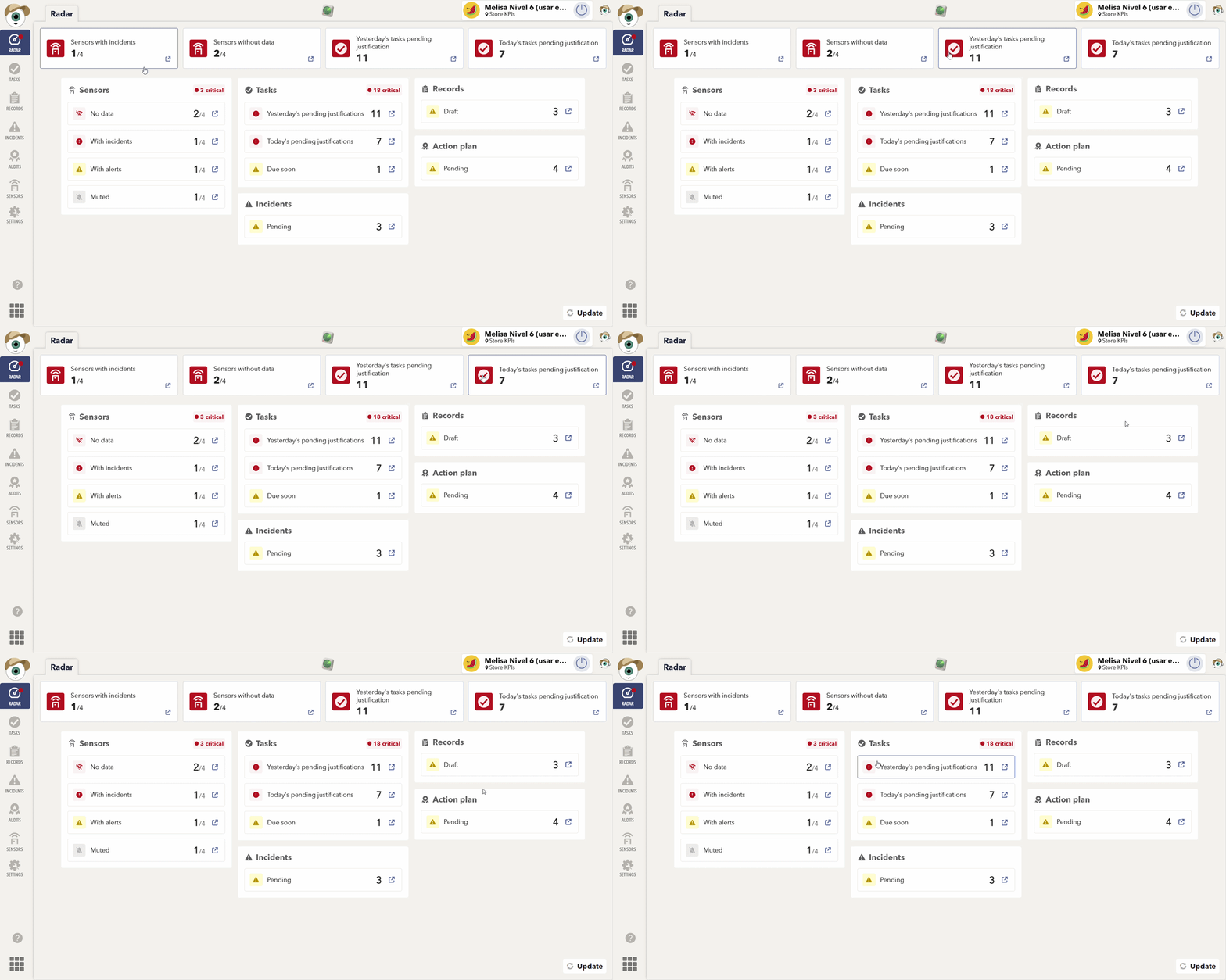
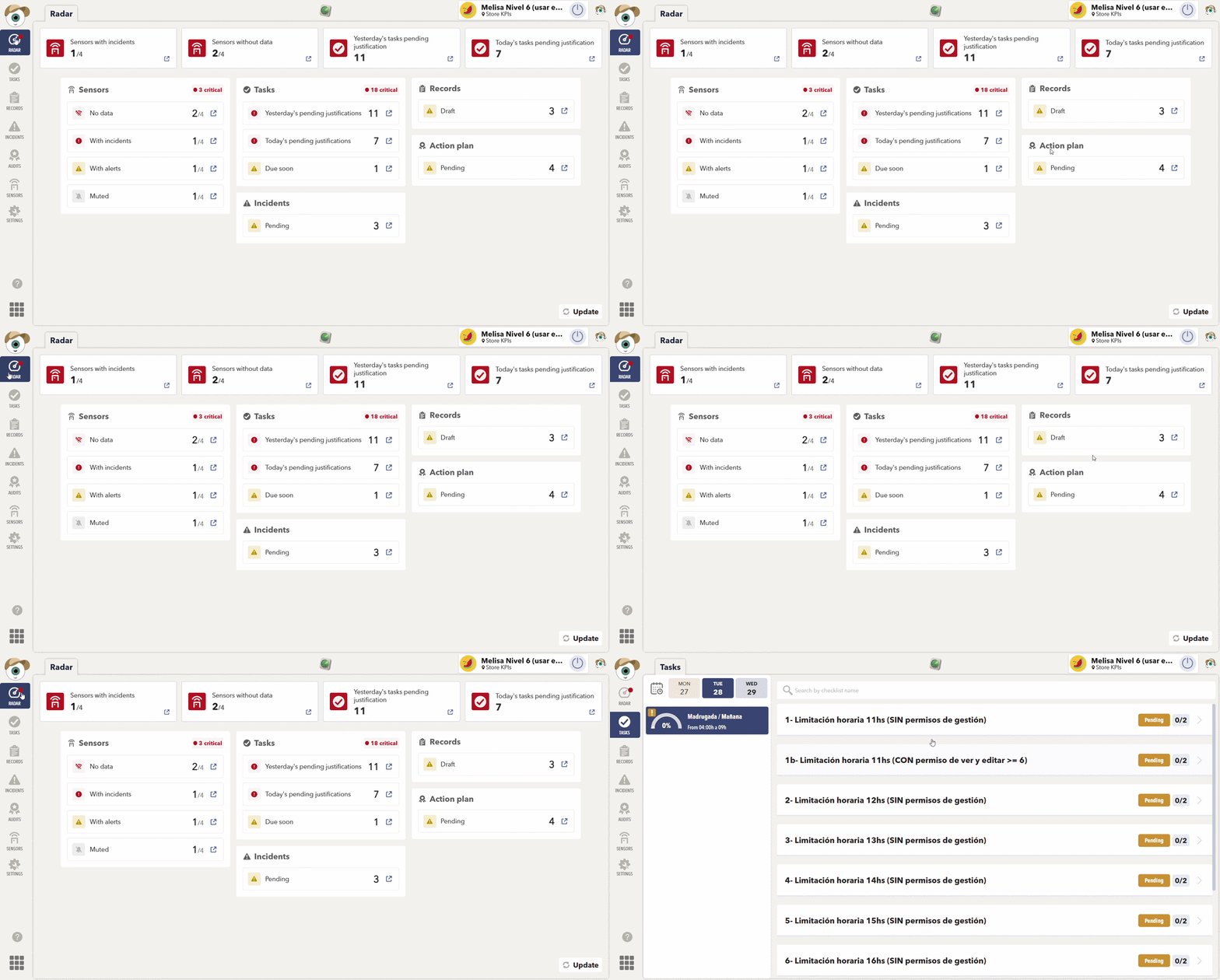
📊 New KPI View on the Home Screen

When opening the app, you will now see the KPI view directly on the Home screen.
This view allows you to monitor and manage your sensors at a glance, giving you quick access to the most relevant information.

APP

🕒 Sensor Power-Off History

A new power-off history log is now available for each sensor.
This log can be accessed from both the Control Panel and the App, making it easier to track events and identify potential issues.

APP

Control Panel

🗑️ New Sensor Removal System (TESTO Devices)

You can now remove TESTO sensors directly from the app settings.
Within the linked sensors section, sensors can be easily unlinked.
Once removed, the pairing process must be completed again to add the sensor back.

APP

December 16th, 2025

CONTROL PANEL

APP

(1) New features in the sensor management tool

Sensor shutdown

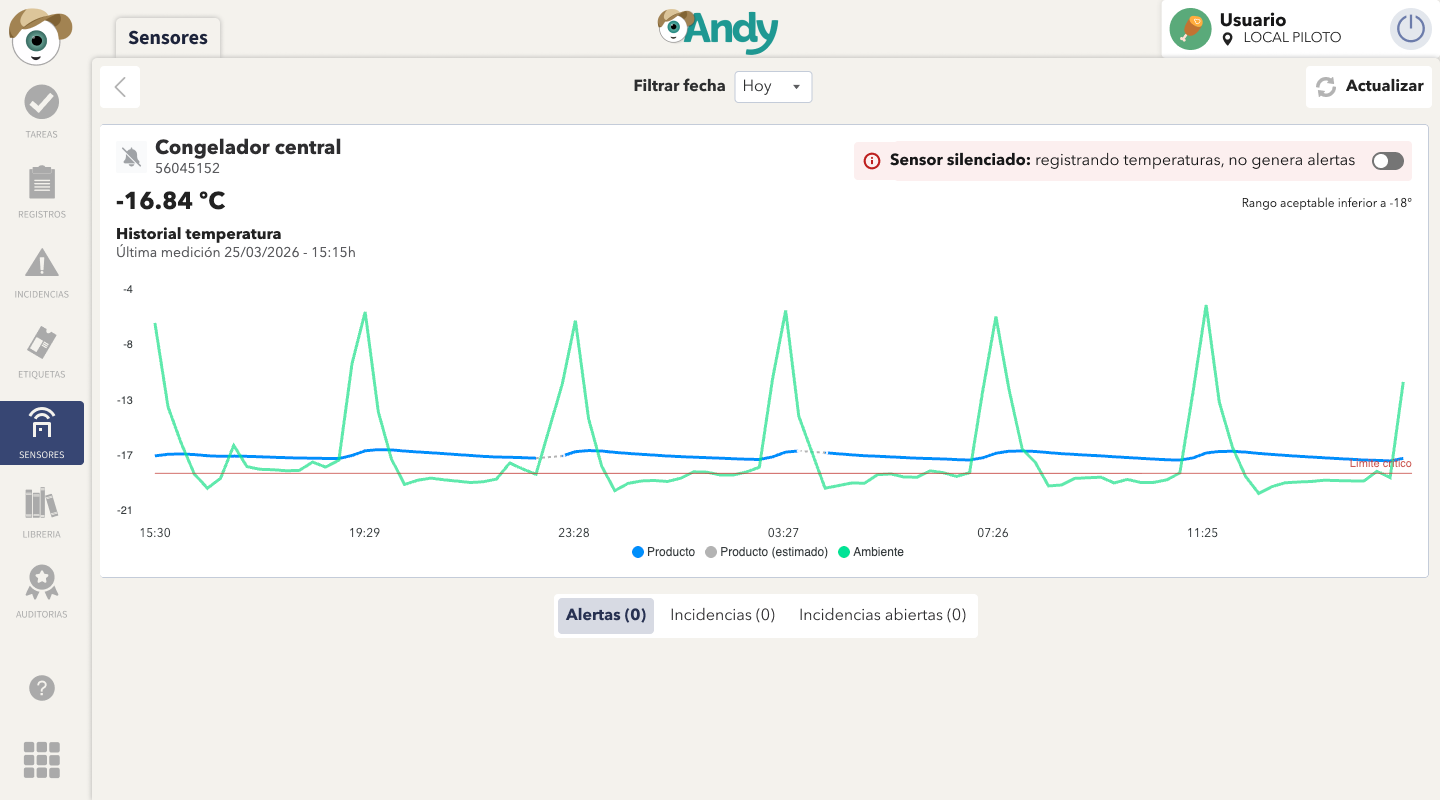
  • A new “Shutdown” option has been added to disable sensor alerts and incidents.

  • When shutting down a sensor, users are required to provide a reason for the action, ensuring traceability and operational control.

New KPI for shut down sensors

  • A new KPI card has been added to the main dashboard to display sensors that are currently shut down.

  • This allows users to quickly identify sensors that may need to be re-enabled, improving monitoring and proactive management.

APP

Sensors in Control Panel

Sensor list by location

A sensor list grouped by location has been added, displaying the current temperature values.

The table uses a new functionality that allows rows to be expanded and collapsed.

  • This improvement enables users to:

    • Quickly locate all sensors associated with each location.

    • Maintain a simplified and cleaner table structure.

    From this list, users can access the individual details of each sensor to review its specific information.

Configuration → Sensors

A new section has been added under Configuration → Sensors.

This view provides a detailed list of sensor devices, making monitoring and management easier.

The table includes the following columns: Location, Equipment, Sensor ID, Battery level, Connection level, Last measurement, Status

Control Panel

November 18th, 2025

Improved

APP

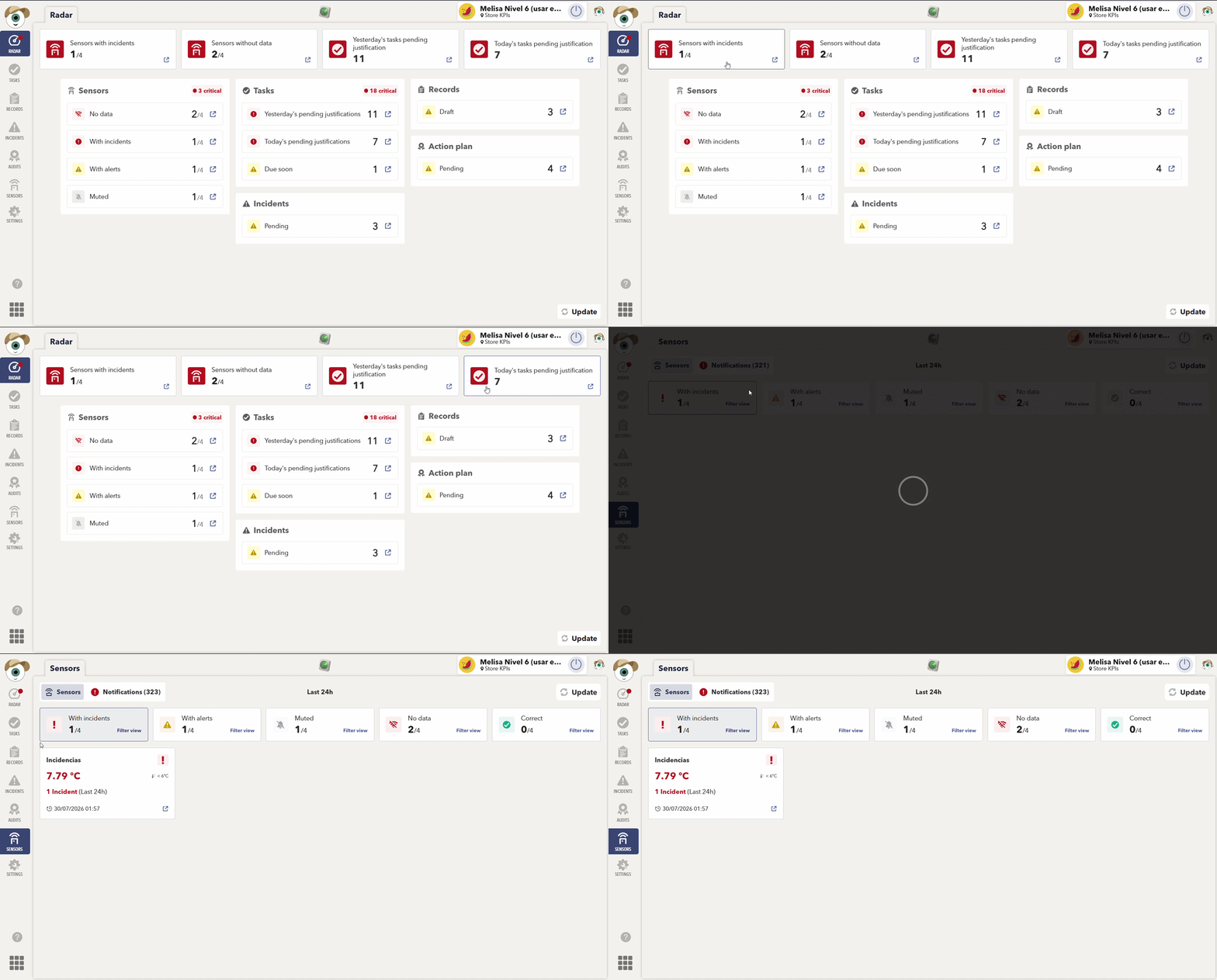
(1) Visual improvements in the sensors tool

The main sensors view has been completely redesigned to provide an immediate reading of the system’s status.

All existing functionalities have been maintained, but the experience is now much clearer, faster, and more intuitive.

Main changes in the traffic-light view

Each sensor is now displayed as an individual card, showing its status through color coding:

  • 🟢 correct · 🟡 alert · 🔴 incident · ⚪ no data

Each card includes:

  • Sensor name

  • Current temperature and expected range

  • Summary status

  • Visual status icons (✔, ⚠, ❗, 📶)

  • Timestamp of the last measurement

📊 New global counters

A set of indicators has been added at the top to provide a quick overview.

They are also interactive: tapping any of them filters the view to show only the corresponding sensors.

🧭 New tab navigation

Grabación de pantalla 2025-12-15 083636.mp4 [video-to-gif output image]

The old tabs have been replaced with clearer ones and notification icons:

  • Sensors → Traffic-light view

  • Notifications → Only active alerts and incidents

This makes it easier to focus directly on what requires immediate attention.

📈 Improved sensor detail chart

The sensor history chart has been updated to offer a clearer and more consistent visual representation.

  • The chart color now adapts to the sensor’s current state.

  • Existing tabs are preserved, and an additional one is included (Alerts, Incidents, and Open Incidents), showing both historical alerts and active incidents.

  • New chart interactions allow switching the view (Show lines, show points, and show ranges).

APP

October 23rd, 2025

New

CONTROL PANEL

(1) Audits analytics 📊

You can now explore and analyze completed audits through the new Audits Analytics panel. Gain actionable insights on audit compliance, scores, and resolution times. Visualize performance by template, group, or location, track non-conformities, and monitor KPIs with interactive charts and tables.

Control Panel

September 8th, 2025

New

Improved

CONTROL PANEL

APP

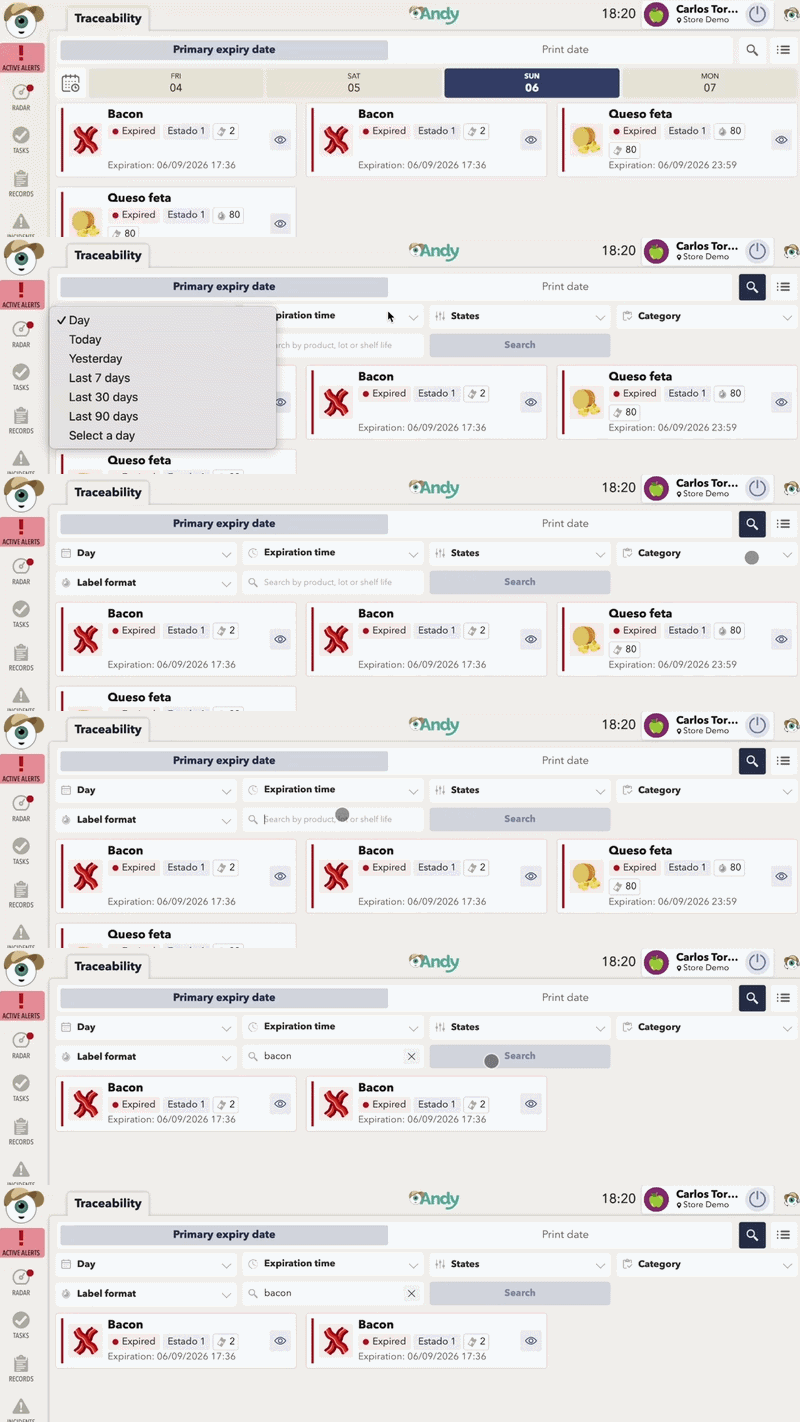
(1) Item search in registers 🔍

We’ve added a new way to search and filter records by specific items, making it much easier to find critical data without manually reviewing large volumes of information.

Key improvements:

  • 📝 New item filter in the Records module

  • 🔍 Search by items such as temperatures, checklist responses, or free text

  • Support for selector/multi-selector items: choose one or multiple options depending on the item configuration

  • ⚠️ Confirmation popup when changing templates with active filters, so users are aware they might lose applied filters

This functionality helps supervisors and auditors save time, verify compliance, and detect errors faster in high-volume operations

Control Panel

(2) Printers in CP 🖨️

You can now view and manage printers across all your locations directly from Configuration > Devices in the Control Panel, with filters, statuses, and detailed info for easier fleet management.

Control Panel

(3) Registers in draft 📝

We’ve launched a set of improvements to make it easier to complete and resume long records without losing track of progress:

  • Section indicators: each section now shows a check when all required fields are complete.

  • 🔽 Collapsible sections: hide completed parts to focus only on what’s pending.

  • 🗂️ Tabs with markers: tabs now indicate whether a section is complete or not.

  • 📊 Progress bar: shows overall completion percentage at the top.

  • 🔍 Section search: available when records have more than 5 sections.

  • 🚀 Auto-focus: records now open directly at the first incomplete section.

  • 📂 Drafts & Completed tabs in the Records table: quickly locate your drafts, with counters and alerts.

💡 All completed records can now be found under the ‘Completed’ tab

APP

July 8th, 2025

New

Improved

CONTROL PANEL

APP

(1) Records: New Analytics Dashboard 📊

You can now view and analyze the data generated by your business records through a new Analytics dashboard. Visualize key performance indicators, download charts, and gain a clear view of records by status, their distribution by location, and much more.

CONTROL PANEL

Related article: How does Analytics work in Records?

(2) Multi-Select Item: Select multiple options at once 📝

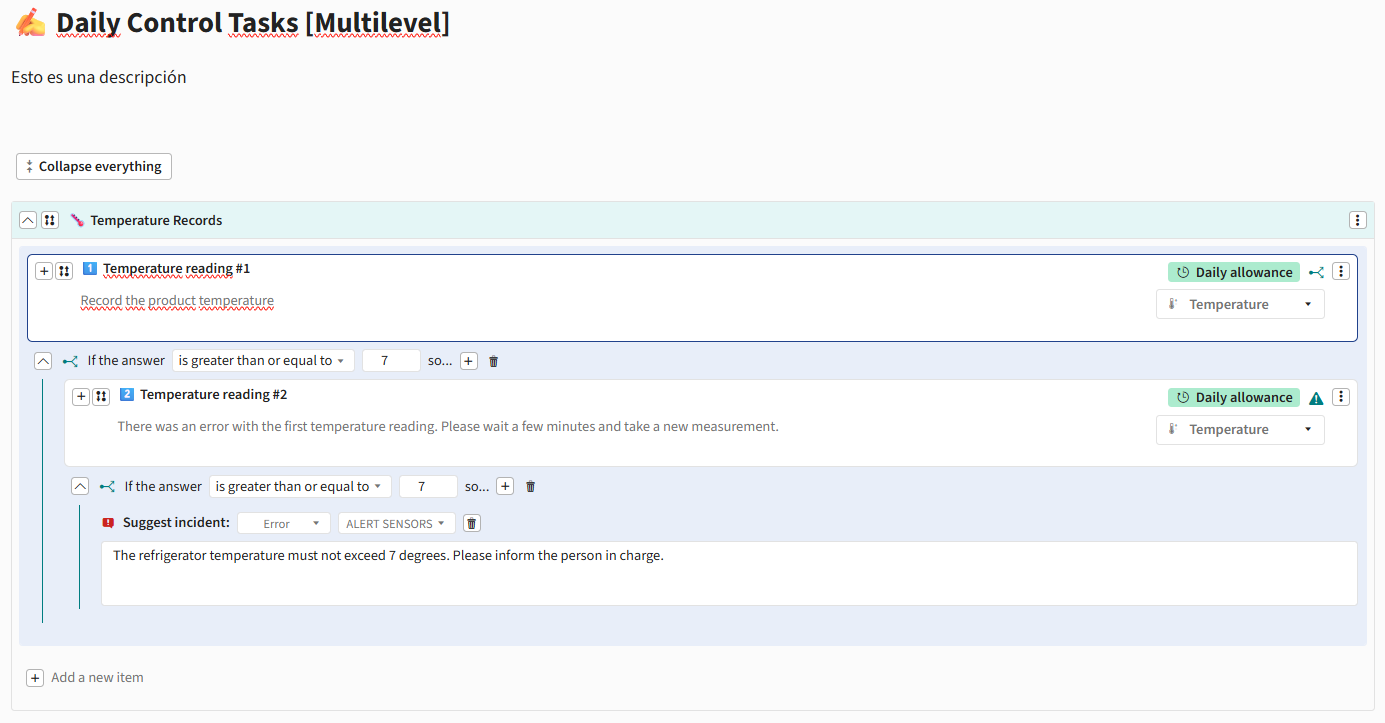
We’ve added a new item type that allows you to select more than one option at a time within an audit, record, or task.

  • Choose multiple options in a single response field

  • Supports sub-items

  • Optimized report display

Available in: Audits, Records, and Tasks, both in the APP and the Control Panel

To enable it, go to the selector item’s properties and check Allow selecting more than one option.

CONTROL PANEL

APP

Related article: Selector Format

(3) Issues, Tasks, and Records: Now with email tracking. 📬

We’ve added a new option under the Share button in the Audits, Tasks, and Records tools. You can now send reports directly via email from Andy and track the status of each delivery.

What does this new feature include?

  • A new option under the Share button alongside “Copy link”

  • Send directly via email to multiple addresses with a personalized message

  • Delivery status tracking (Sent/Open) with date and time

CONTROL PANEL

Related article: How can I customise, download and share my reports?

(4) Home: New KPIs on the Dashboard 🪄

To make it easier to track what's pending, we've added new indicators to the home page of the Control Panel. Now, in addition to the percentage of completed tasks and the total number of tasks completed, you can more clearly see how many templates are still pending verification. These indicators will help you better prioritize your actions and maintain greater control over the progress of your activities.

CONTROL PANEL


June 5th, 2025

New

Improved

CONTROL PANEL

(1) Issues: New Analytics Dashboard 📊

You can now view and analyze the data generated by your business records through a new Analytics dashboard. Visualize key performance indicators, download charts, and gain a clear view of records by status, their distribution by location, and much more.

CONTROL PANEL

How does Analytics work?(2) Home dashboard: Download CSV from charts 📊

(2) Audits: Share Reports and View Email History 📤

A new option is now available to share audit reports via email. You can add a personalized message when sending them and track the status of each delivery: you'll know when the email was sent and when it was opened. This email history will be visible to users with role level 7.

CONTROL PANEL

How to share audit reports via email?


May 8th, 2025

New

Improved

CONTROL PANEL

(1) Audits: Report view and export 📋

We’ve added new display options in the audit-report side panel so you can reduce the final page count. Settings are now grouped into General settings, Customize items, and Additional content.

From these controls you choose whether to show or hide descriptions and, if you wish, include only the items that contain alerts, incidents, or action plans—giving you a more focused, compact report.

CONTROL PANEL

Article related: How can I customise, download and share my reports?

(2) Home dashboard: Download CSV from charts 📊

Each dashboard chart now offers a Download CSV option (three-dot icon ⋯). You can export data from By locations, By groups, By time slots, and By templates and analyze the file in any tool you prefer.

CONTROL PANEL

How can I view the activity details of my locations from the Control Panel?

(3) Task planning: new “Planning” status 🔄

To improve usability, we’ve introduced the Planning status while task lists are being generated. When a template is in this state you won’t be able to edit it, but the process takes only a few seconds and the indicator keeps you informed the entire time.

CONTROL PANEL

April 2nd, 2025

New

Improved

CONTROL PANEL

(1) Audits: Verification

You can now verify audits from the Audits tool in the Control Panel, using the same process as record verification. In addition, you have the option to change the status directly from the selector in the status column of the table.

You can now verify audits from the Audits tool in the Control Panel, using the same process as record verification. In addition, you have the option to change the status directly from the selector in the status column of the table.

Furthermore, each status in Audits has its own explanatory tooltip. Below is a detailed description:

  • Verified: Audits that have been completed and are configured for verification, and have already been successfully verified. This status only appears if the audit is set up for verification.

  • To Be Verified: Audits that have been completed and configured for verification but have not yet been verified. This status also only appears in audits that require verification.

  • In Progress: Audits that are not yet finished; therefore, they cannot be moved to “To Be Verified” or “Verified.” This status applies to audits whether or not they are configured for verification.

  • Completed: Audits that are concluded but not configured for verification. This status only applies to audits that do not require verification.

CONTROL PANEL

How can I check the audits with Andy?

(2) Tasks: Verification

The Tasks tool now incorporates the same verification functionality already used for Records and Audits. Each task can have different statuses: Not Completed, To Justify, Justified, To Verify, Completed, and Verified allowing you to manage and filter tasks more thoroughly and maintain clear oversight of their progress.

Each status has its own explanatory tooltip. Below is a detailed description:

  • Not Completed: The task is enabled in the APP, but no action has been taken yet, and the due date has not passed. This status applies to both tasks that are configured for verification and those that are not.

  • To Justify: The task’s due date has passed, and it was not justified in time. This status applies whether or not the task is configured for verification.

  • Justified: The task also exceeded its due date but was justified correctly. This status appears only for tasks that are not configured for verification.

  • To Verify: The task was completed, justified, or marked as N/A in the APP and is set up for verification, but it has not yet been verified. This status only appears in tasks configured for verification.

  • Completed: The task was finished on its scheduled date or marked as N/A. This status only applies to tasks that do not require verification. If verification is required, the task automatically moves to “To Verify.”

  • Verified: The task was completed, justified, or marked as N/A in the APP and, because it is configured for verification, it has already been successfully verified. This status applies only to tasks that require verification.

On the home screen of the Control Panel, you will also find a widget displaying the number of Tasks, Records, and Audits pending verification, giving you a quick overview of the activity that requires your attention.

CONTROL PANEL

Related article: How can I check the tasks with Andy?

(3) Tasks: Task Activity Report via Email

From the Control Panel, you can now set up email notifications summarizing the activity of your tasks. You may choose a daily, weekly, monthly, or quarterly frequency—or even combine multiple frequencies—and can unsubscribe at any time. You will receive a report in your inbox with data from your stores.

Please note that, for the moment, this configuration is only available for users with level 9 access.

CONTROL PANEL

March 10th, 2025

New

Improved

CONTROL PANEL

(1) Records: Verification and New Features 📋

We have added the option to configure user signatures, allowing each user to verify records with their own signature.

Additionally, you can now verify multiple records simultaneously from the Records section in the Control Panel by selecting them by template, speeding up the process.

If you make a mistake, you have the option to “unverify” a record and correct it before validating it again.

To enhance organization and oversight, each record now displays a status (such as verified or pending), making information management more efficient.

Please note that these features require you to enable the “Verification” option in each template and define which users are authorized to perform this action. Records can be verified starting on March 10, 2025.

CONTROL PANEL

Related article: How can I check the logs with Andy?